Financial settings
Financial settings are in Settings > Financial. Set them up before you take your first payment.
Accounts
Accounts are where payments go: your cashbox, card terminal or bank account. Every payment you take on a booking is recorded on one of them.
Open the Accounts tab and click Create account with:
- Account name, for example "Reception cash".
- Account type: Cashbox, Credit card, Bank transfer or Other.
- Currencies the account takes.
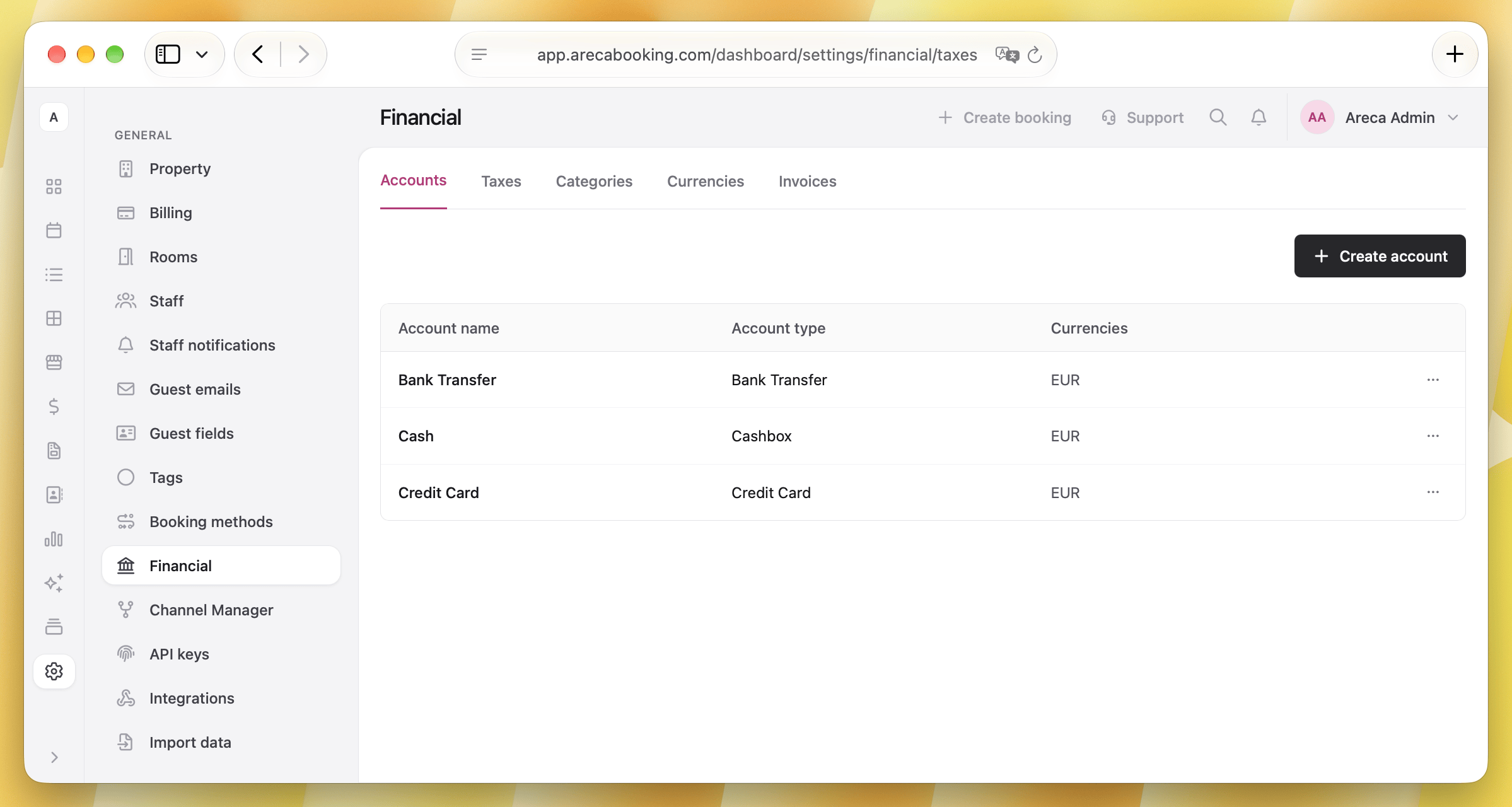
An account that already has transactions can only be deleted after you move them to another account with Reassign & delete.
Which staff can see an account and take payments into it is set in staff roles.
Taxes
Open the Taxes tab. With no rule, no tax is charged.
Accommodation tax
The accommodation tax, such as VAT, is a percentage of the room price. Areca sets it up for you when you create the property, with the name and rate used in your country, for example VAT 8% in Poland or IVA 10% in Spain.
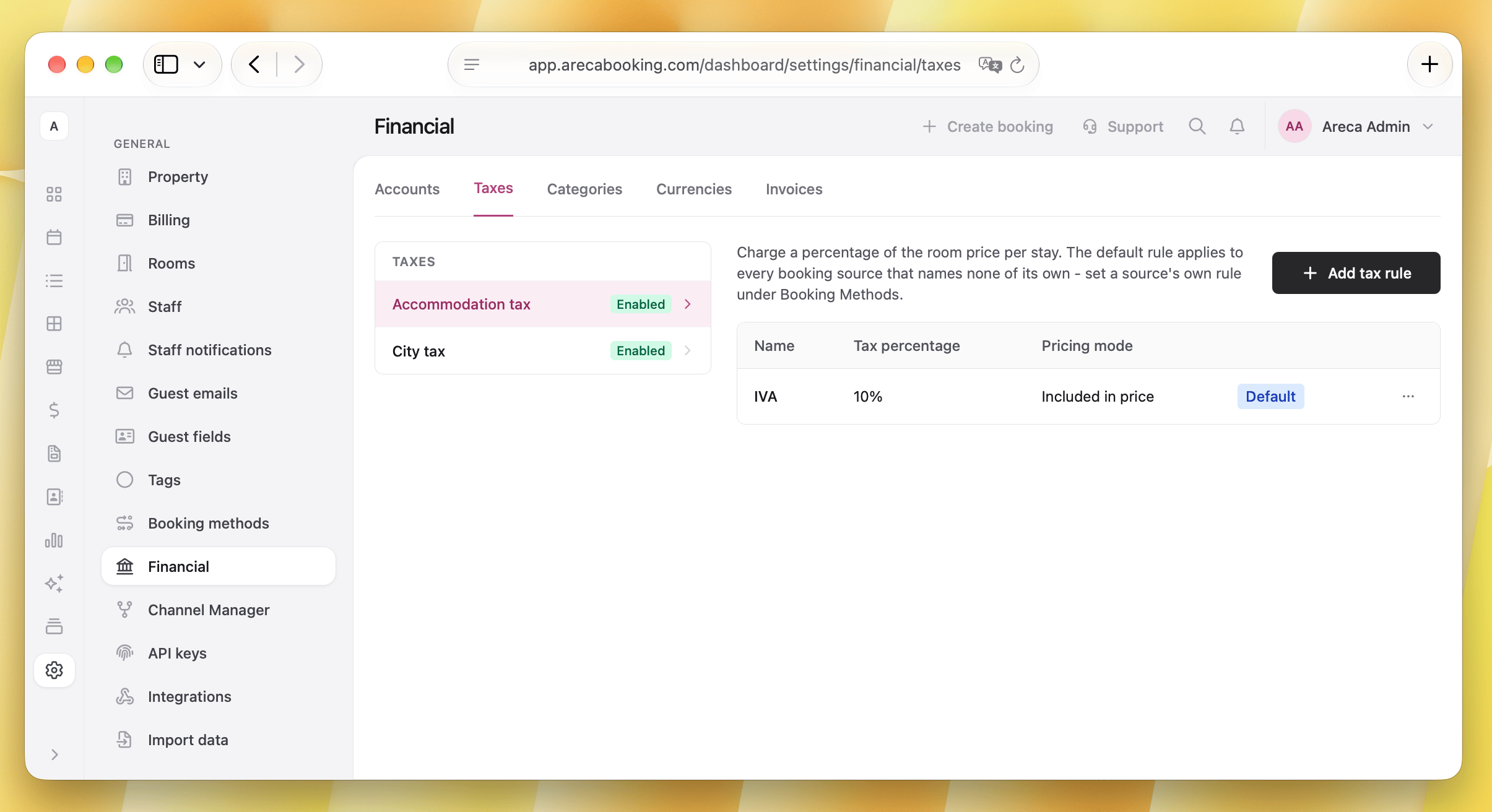
In most countries the rule is Included in price: your prices already contain the tax, so nothing is added to the guest's total. The booking's Billing tab shows how much of the total is tax.
In countries where prices are usually shown before tax, such as the United States, Canada or Mexico, the rule is Excluded from price and the tax is added on top. In Chile, IVA is also not charged on stays billed in USD.
The rule is a starting point. Check it and change what does not match your property:
- Name and Tax percentage.
- Pricing mode: Included in price or Excluded from price.
- Exempt currencies (0% tax): currencies the tax is not charged in.
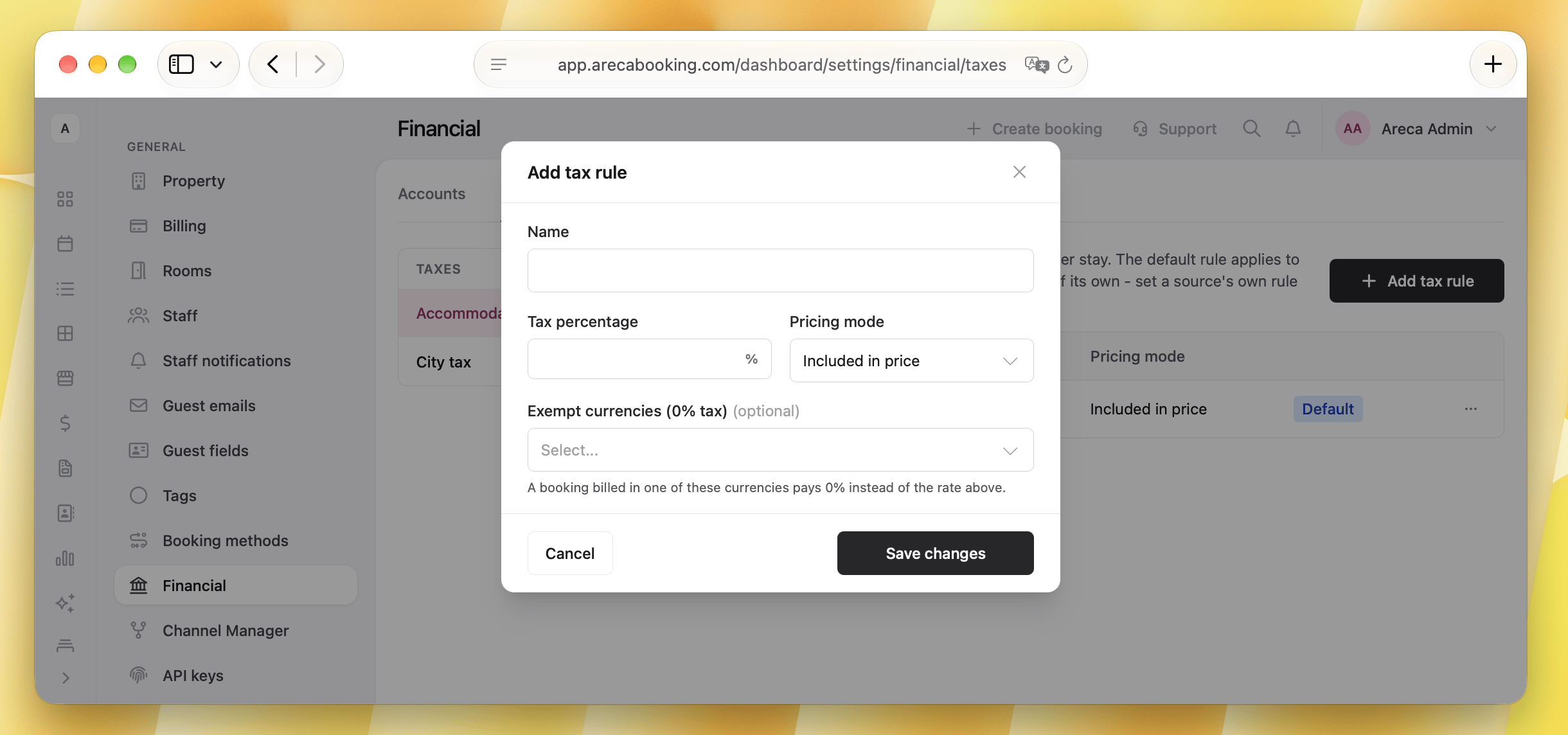
Use Add tax rule for another rate. Make default sets the rule used for every booking. A booking method can have its own, see Taxes per booking method.
City tax
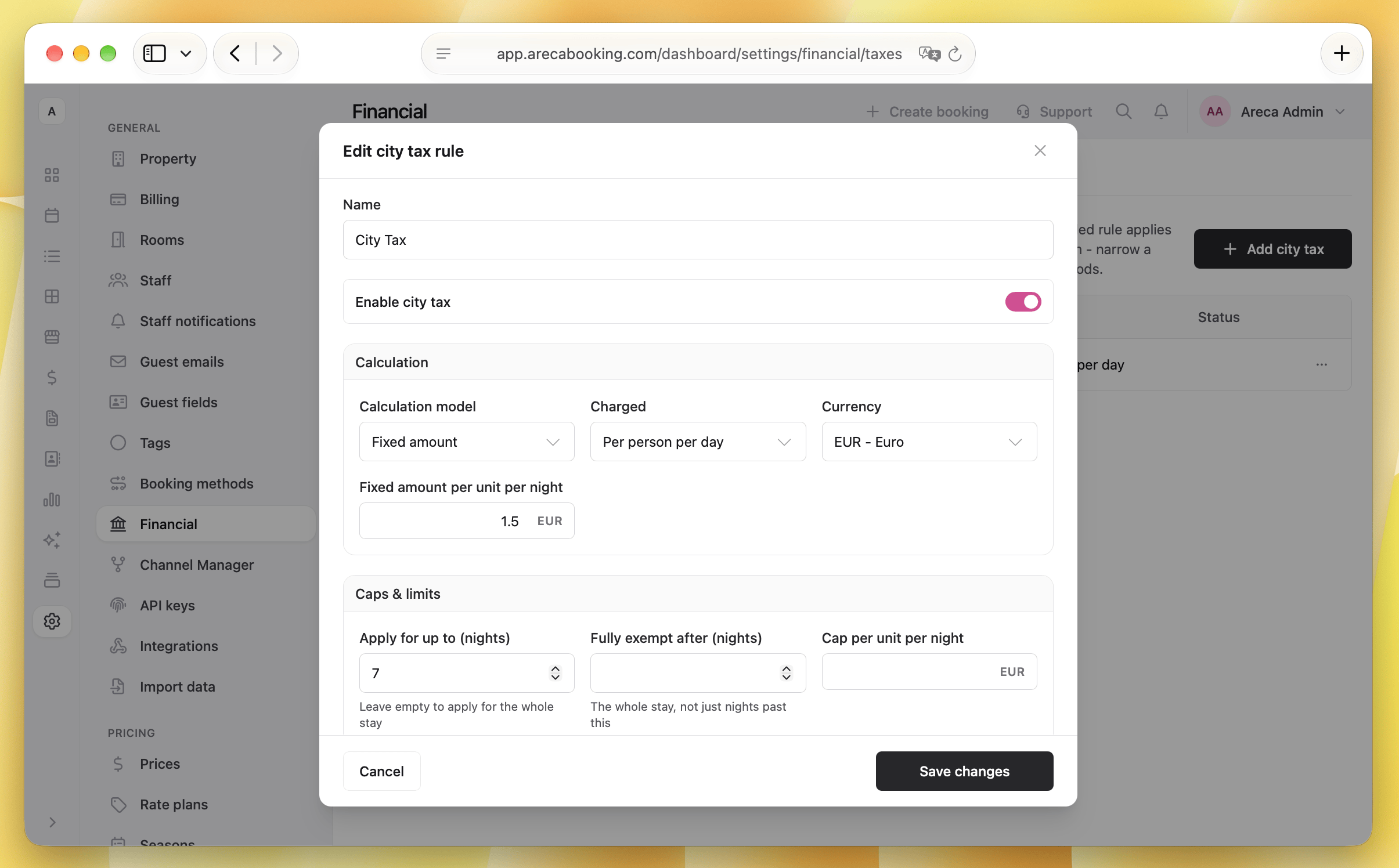
City tax, or tourist tax, is charged per night. Click Add city tax to create a rule:
- Calculation model: Fixed amount, Percentage of room rate, Fixed amount + percentage, or Tiered by room rate for an amount that depends on the price of the room.
- Charged: Per person per night or Per room per night.
- Apply for up to (nights): for a city that charges only the first nights. Leave empty for the whole stay.
- Optional limits: Fully exempt after (nights), Cap per unit per night, and Effective from and Effective to dates for a rate that changes on a given day.
- Add age discount: for example no tax for children under 12.
- Fully exempt categories: Local resident, Business traveler or Disability / companion.
- Room types: leave empty to apply the rule to every room type.
Enable city tax turns a rule on or off. Every enabled rule is added to bookings on its own. You can still add or change city tax by hand on a booking, see Payments.
Taxes per booking method
Some channels collect taxes themselves, or a booking method needs a different rule. Open Settings > Booking methods and choose Tax settings for a method:
- Accommodation tax rule: its own rule, or Use property default.
- City tax: Apply every enabled rule, one chosen rule, or Never charge city tax.
- Tax collected by this channel: city tax is still calculated for reports, but not added to the balance due.
Currencies
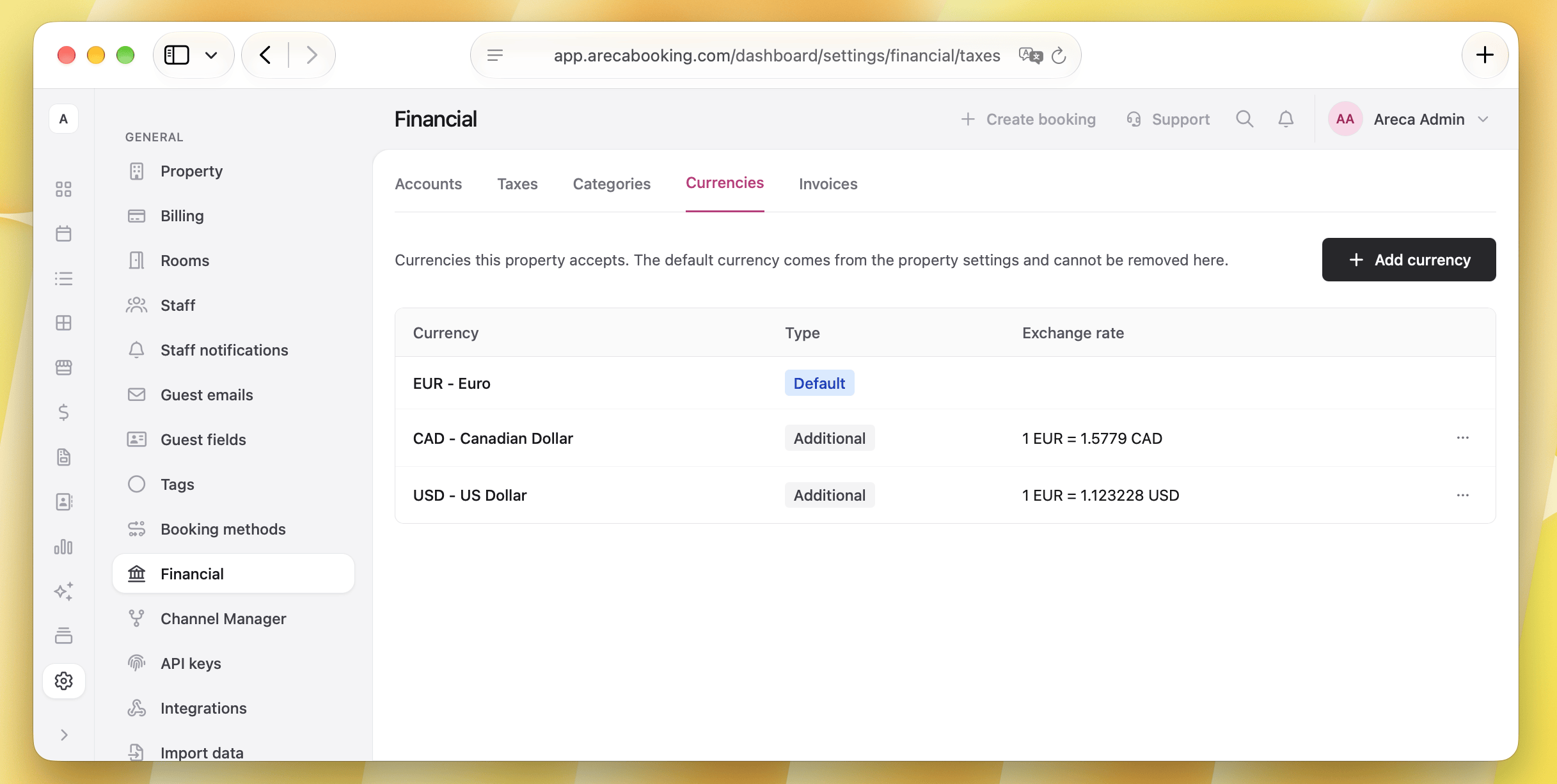
Your main currency is set in Settings > Property. On the Currencies tab, click Add currency to charge guests in another one, and set its Exchange rate.
With an extra currency you can:
- keep a separate price list in it, see Prices,
- take payments in it,
- change the currency of a booking.
Categories
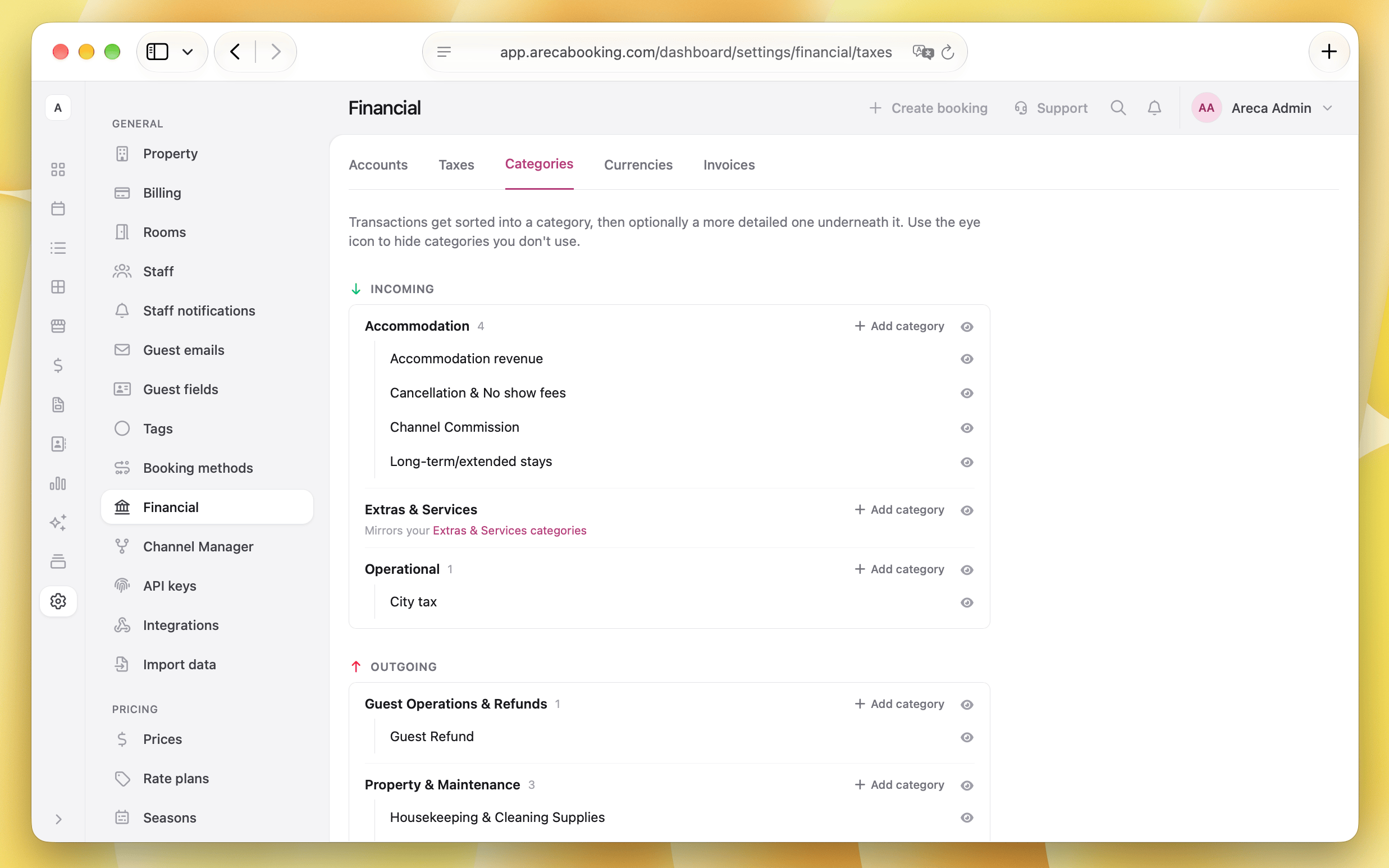
Every transaction is sorted into a category, for example accommodation or extras, and optionally a more detailed one under it. The Categories tab shows Incoming and Outgoing categories.
- Categories for extras are synced from Settings > Extras & Services.
- Add your own under any category, for example "Laundry" under outgoing costs.
- Use the eye icon to hide categories you do not use.
Categories are used to filter the Accounts page and in reports.
Invoices
The Invoices tab holds your business details, logo, footer and invoice numbering. See Invoices.
FAQ
Can I have different city tax for shared and private rooms?
Yes, you can create separate city tax rules for different room types. When setting up a rule, use the Room types field to specify which rooms it applies to. Leave it empty to apply the rule to every room type.