Staff accounts
Every person on your team can have their own account, with a role that decides what they can see and do. The Logs show who made each change.
Add a staff member
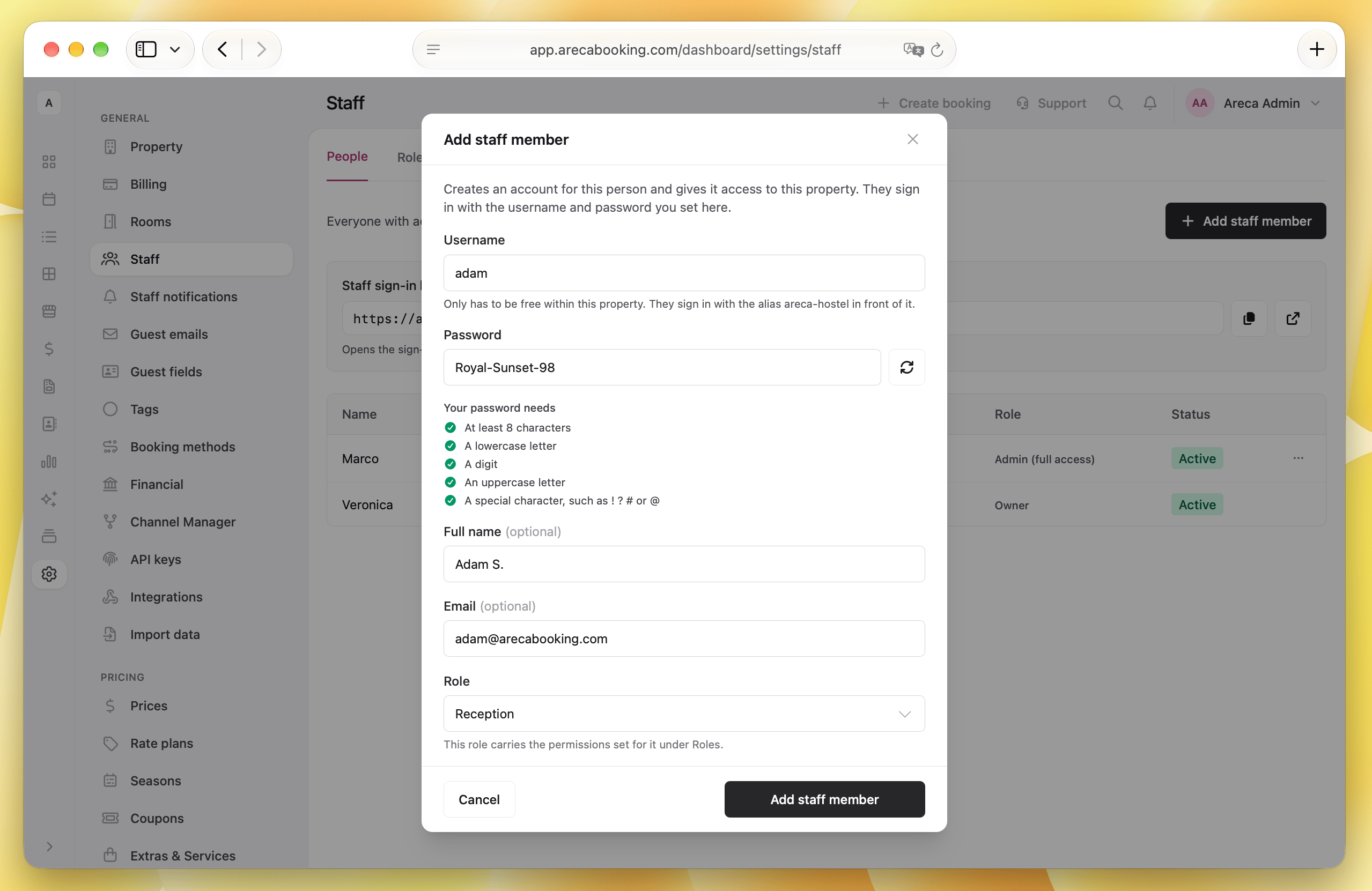
- Open Settings > Staff and click Add staff member.
- Fill in:
- Email: what the person signs in with. Recommended, but optional.
- Username: for sign-in without an email. It cannot be changed later.
- Password: type one or click Generate a password.
- Full name and Role. See Roles.
- Click Add staff member and give the person their password.
No invitation email is sent. The account works right away.
How staff sign in
With an email, staff sign in on the sign-in page like you do, and reset a forgotten password themselves with Forgot password?.
An email can belong to only one Areca account, so an address already in use cannot be added again.
Sign-in without an email
For someone without an email, or a shared "reception" account, staff choose Sign in with username and type your
Property alias, their Username and Password, for example sunny-hostel and anna.
The Staff sign-in link at the top of Settings > Staff opens the sign-in page with the alias filled in. Save it on the reception computer.
The alias is made from your property's name. To change it, go to Settings > Property. The old sign-in link then stops working.
Change or remove access
In Settings > Staff, open the person's menu:
- Edit staff member: change their details or role, or set a New password.
- Deactivate: they can no longer sign in, and their past changes stay in the logs. Activate brings the account back.
Staff change their own password, email and two-factor authentication in Account, in their profile menu.
Roles
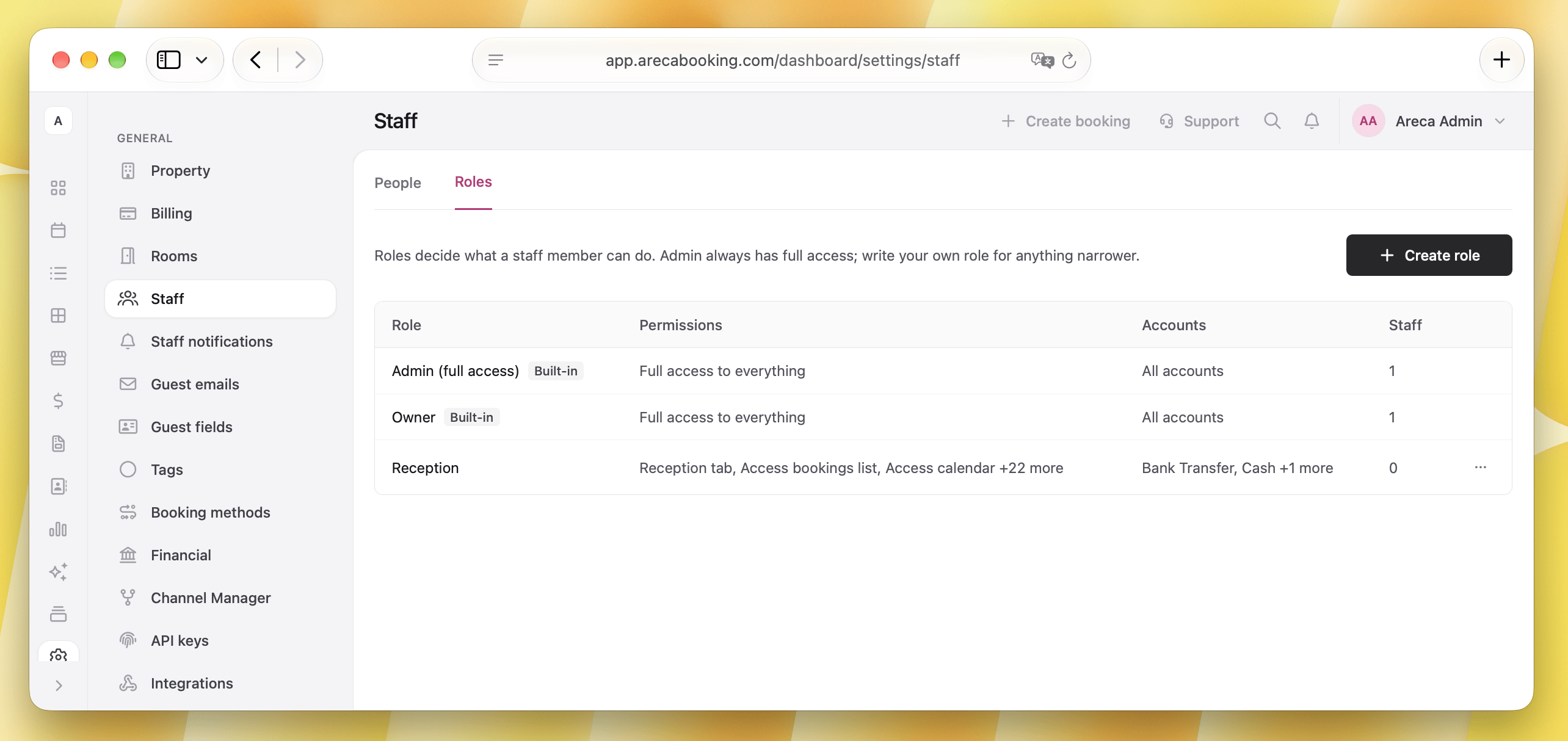
- Owner: has full access to the property and can manage billing and subscription.
- Admin (full access): everything in the property.
- Reception: comes with every property, for work at the desk.
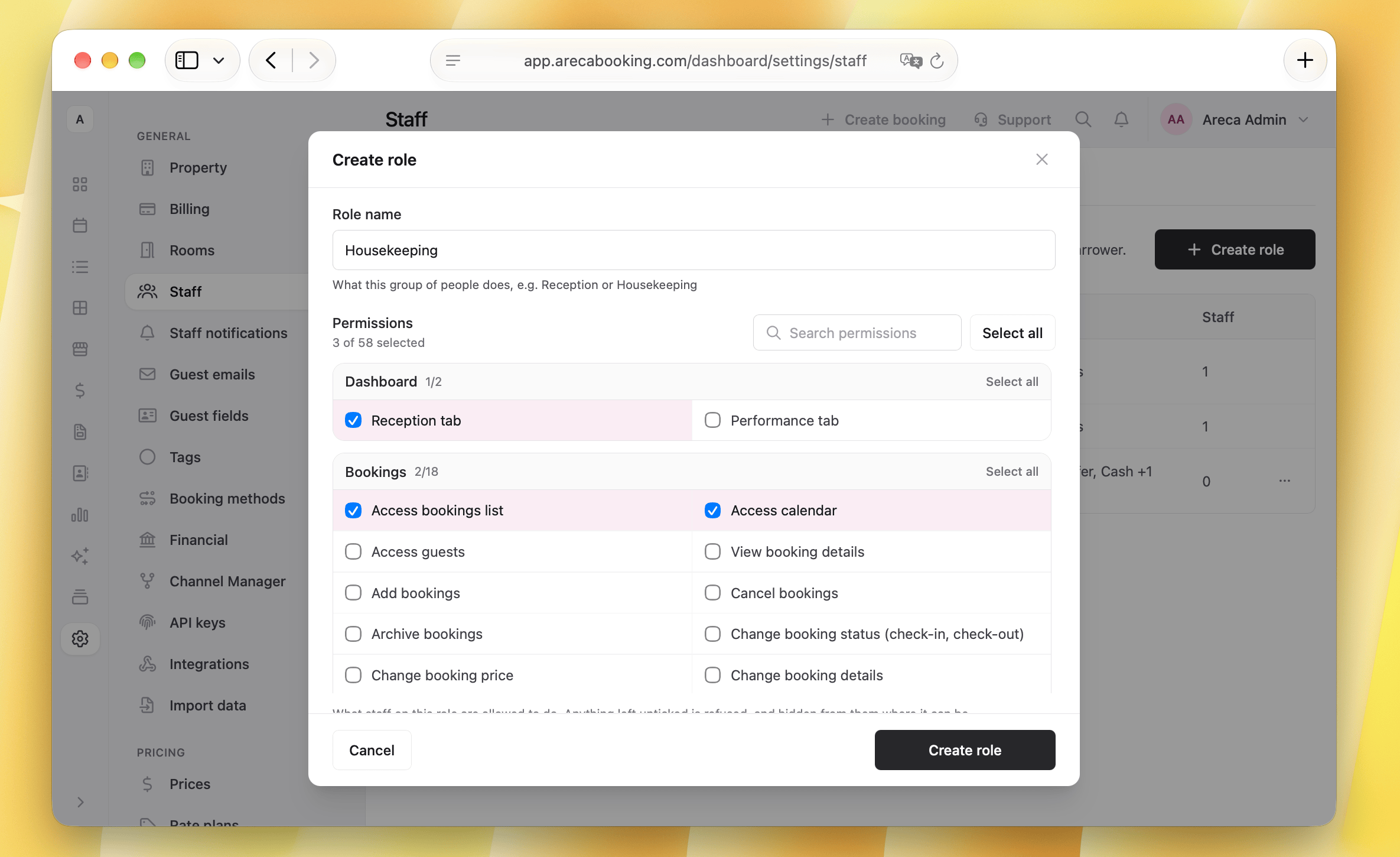
- Your own roles, for example "Housekeeping": create them on the Roles tab with Create role.
A role has Permissions, grouped into bookings, calendar and availability, POS, finances, reports and settings. Staff do not see pages and buttons their role does not allow.
Under Accounts, choose which tills the role can use: No access, View, or View and register payments. A till added later is hidden from every role until you give access to it.
FAQ
Do staff members need an email address?
No, but it is recommended. Without one they sign in with a username and cannot reset a forgotten password themselves. You set a new one in Edit staff member.
How many staff accounts can I have?
The PRO plan includes unlimited staff accounts. See Plans and billing.
How do I see who made a change?
Open Logs in the menu. Changes to a booking are also on the booking's History tab.
How to enable two-factor authentication?
To enable two-factor authentication, staff members go to their profile menu (the icon at the top right) and select Account. Under Two-factor authentication, follow the instructions to set it up with an authentication app.