Rate plans and prices
Prices are set in Settings, in the Pricing group, or can be adjusted per date in Availability & Rates.
Rate plans
A rate plan is a set of conditions a room is sold under, for example "Standard" or "Breakfast included". By default, there is a "Standard" and a "Non-refundable" rate plan (10% off the standard rate) already created and available in all room types.
To add a new rate plan, go to Rate plans and click Add rate plan. Then fill in the following fields:
- Name: used internally to identify the rate plan.
- Set as default: makes this plan the default across the app.
- Includes breakfast: tick it when breakfast is included in the rate.
- Is derived: the plan follows another plan's prices with a fixed or percentage adjustment. Use negative values for discounts, for example -10 for 10% off.
- Stay length: set the default minimum and maximum stay for this rate plan.
- Room types: which room types the plan is available for.
Seasons
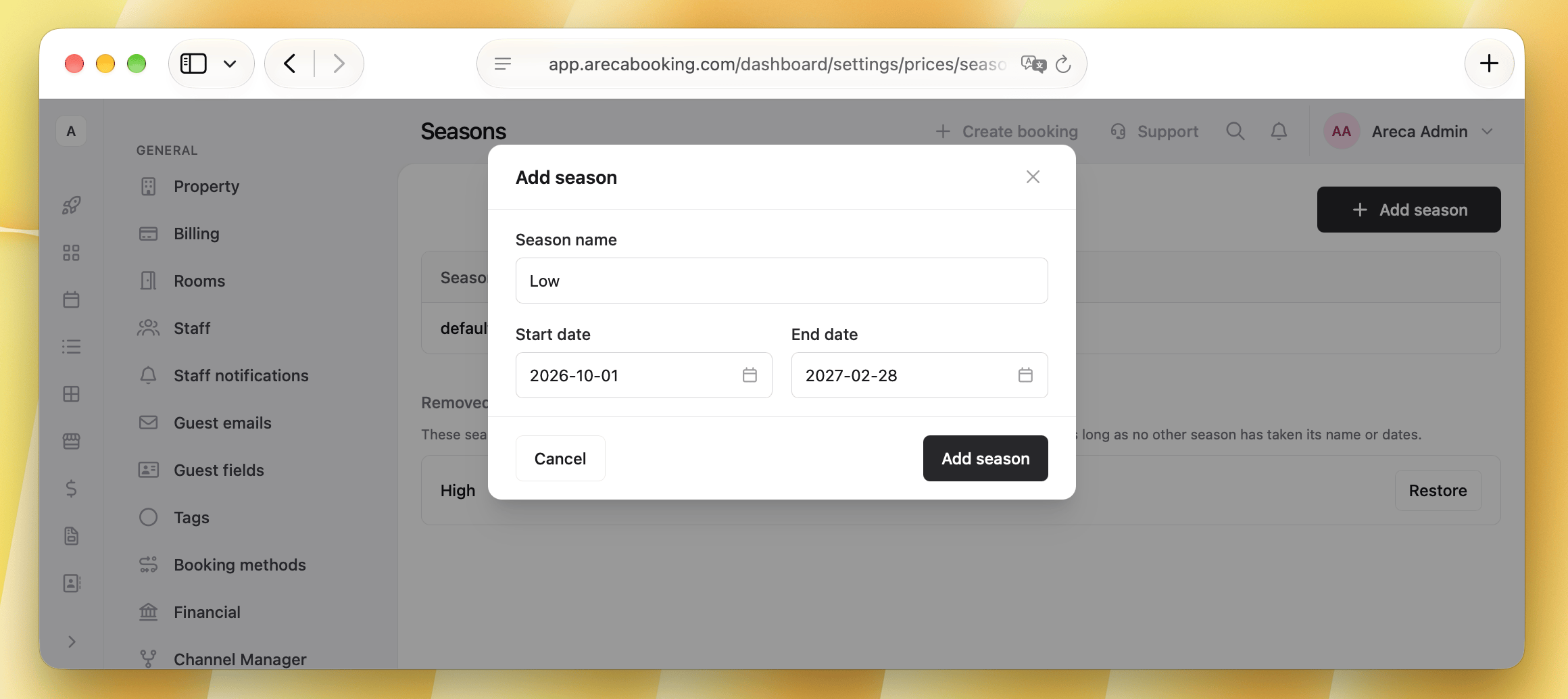
A season is a date range with its own prices, for example summer. Open Seasons and click Add season with a name, a start date and an end date. Seasons cannot overlap. Dates outside every season use the default season.
Prices
Open Prices to see one row per room type and season, and one column per rate plan. Type the price of a night and click Save prices.
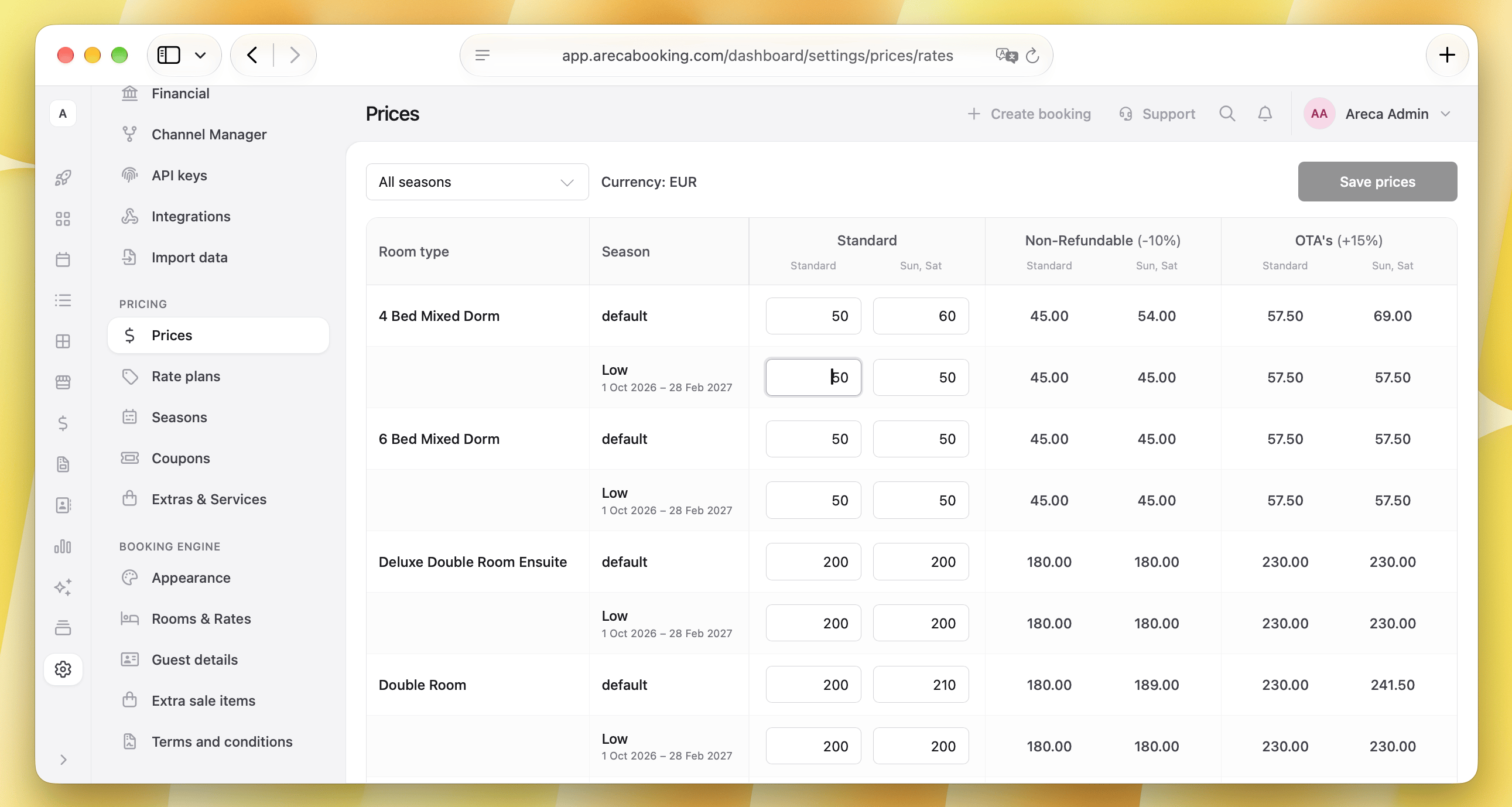
- In shared rooms, the price is per bed rather than per room.
- Default season is used for dates that do not fall into any other defined season.
- Prices in derived rate plans are calculated based on the base rate plan with the specified adjustment. Note they can still be edited manually in the Availability & Rates calendar.
Weekend prices
Choose your busier days under High weekdays in Settings > Property, for example Friday and Saturday. Every price then has two fields: the standard price and the price for those days.
Prices for fewer guests
A private room can cost less when fewer guests stay in it, for example a double room booked by one guest. The prices you type in Prices are for the full room, which means the Base occupancy (adults) of the room type. Shared rooms are priced per bed, so this does not apply to them.
Guests see and pay the price for the number of guests they book, in the booking engine and on channels that price per guest.
Set a rule for the room type
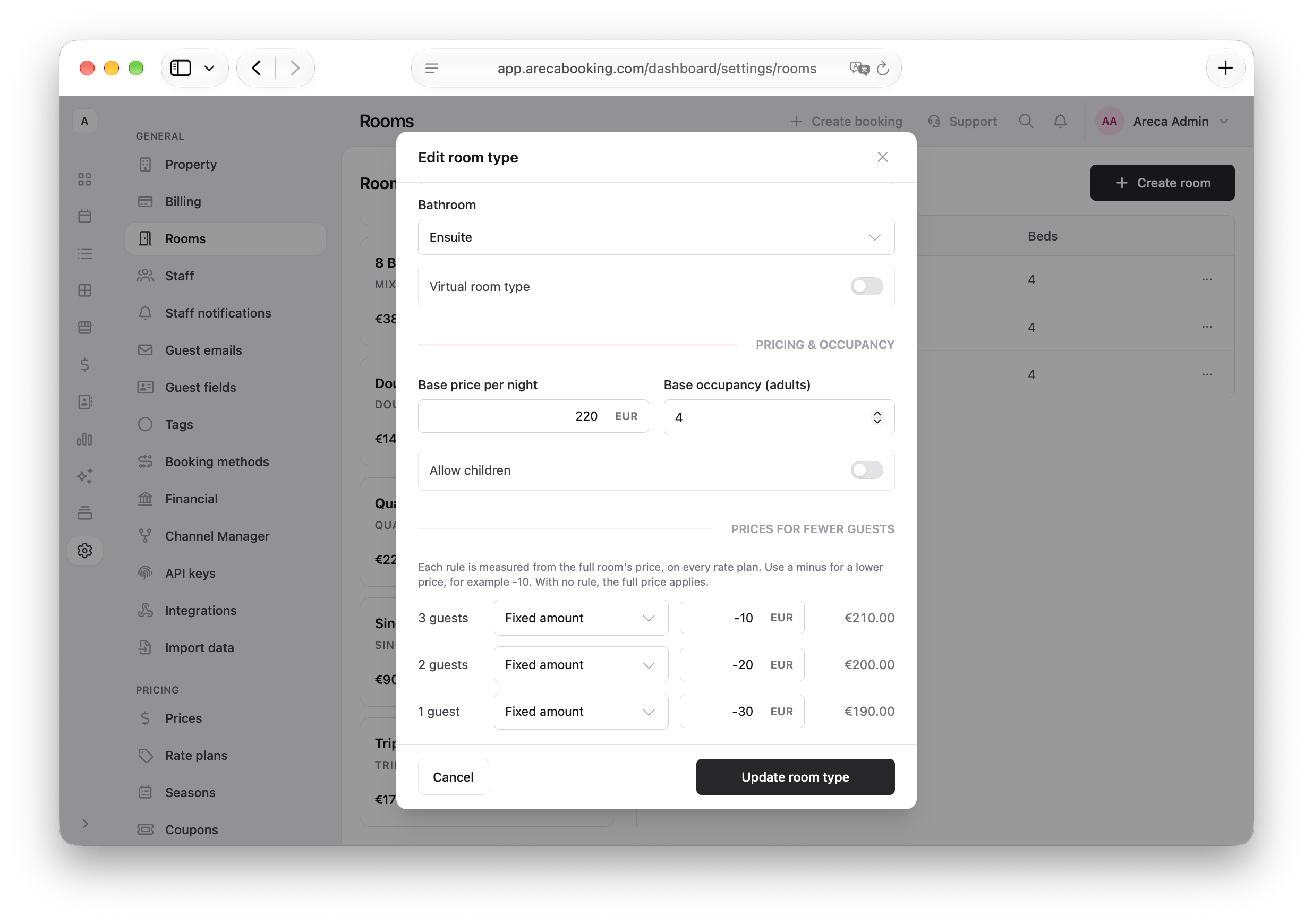
Open Settings > Rooms and edit a private room type with a base occupancy of 2 or more. Under Prices for fewer guests, choose for each number of guests:
- Full price: the guests pay the same as the full room. This is the default.
- Percentage: for example -20 for 20% less than the full room.
- Fixed amount: for example -15 for 15 less per night.
A rule is counted from the full room's price, so it follows every season, rate plan and weekend price on its own. If a rule would bring the price to zero or below, the full price is used instead.
Change the price for a season or rate plan
In Prices, click Prices for fewer guests under a room type. Each number of guests gets its own row, with the price worked out from the rule. Type a price to replace it for that season and rate plan, or clear the field to go back to the rule. With weekend prices on, each row also has the weekend field.
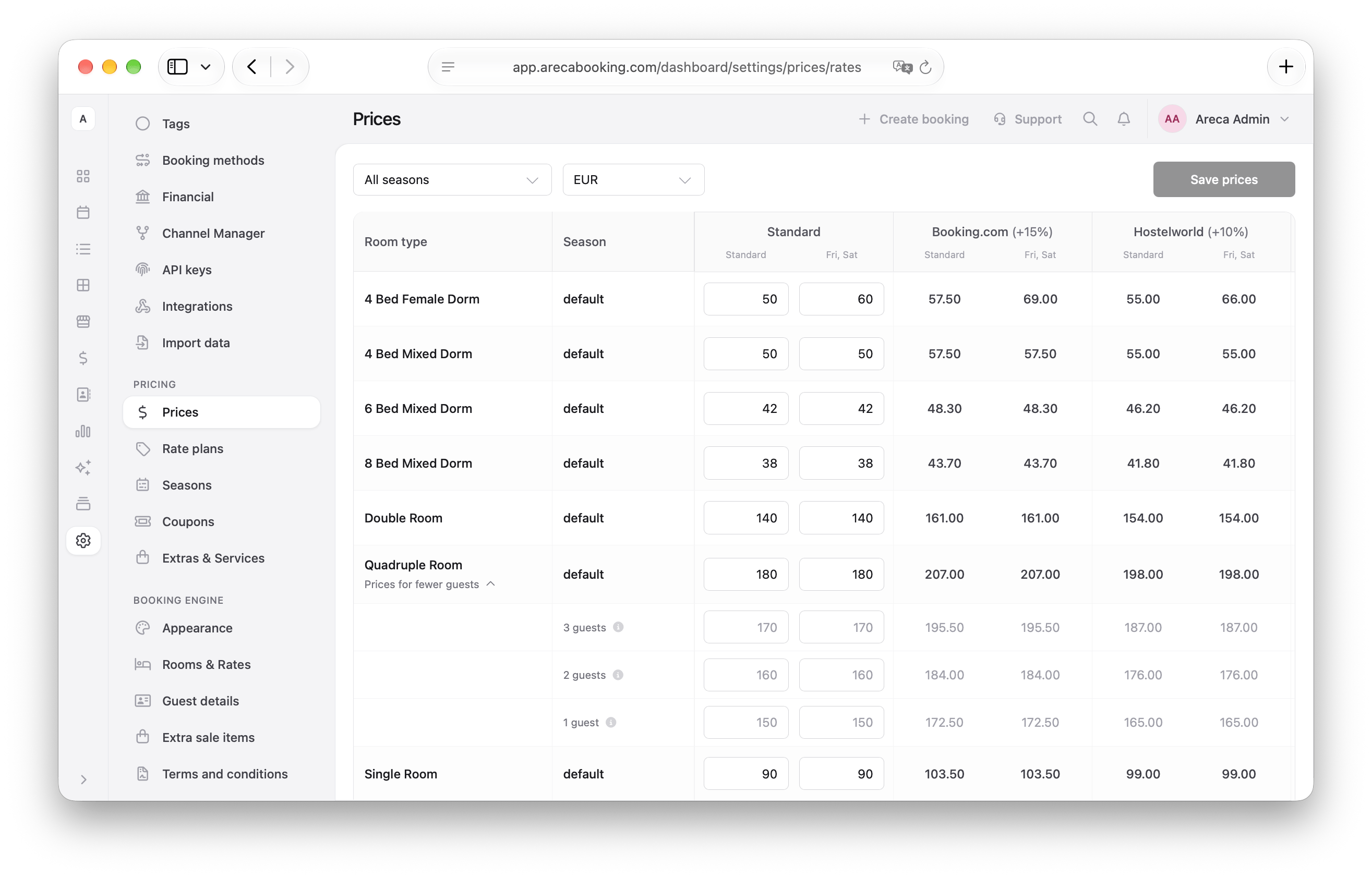
Derived rate plans follow their base plan's price for the same number of guests, with their own adjustment on top, so you do not type them.
On a price list in another currency, a fixed-amount rule is converted at the exchange rate and shown in grey. Type an amount to set your own.
Change the price for specific dates
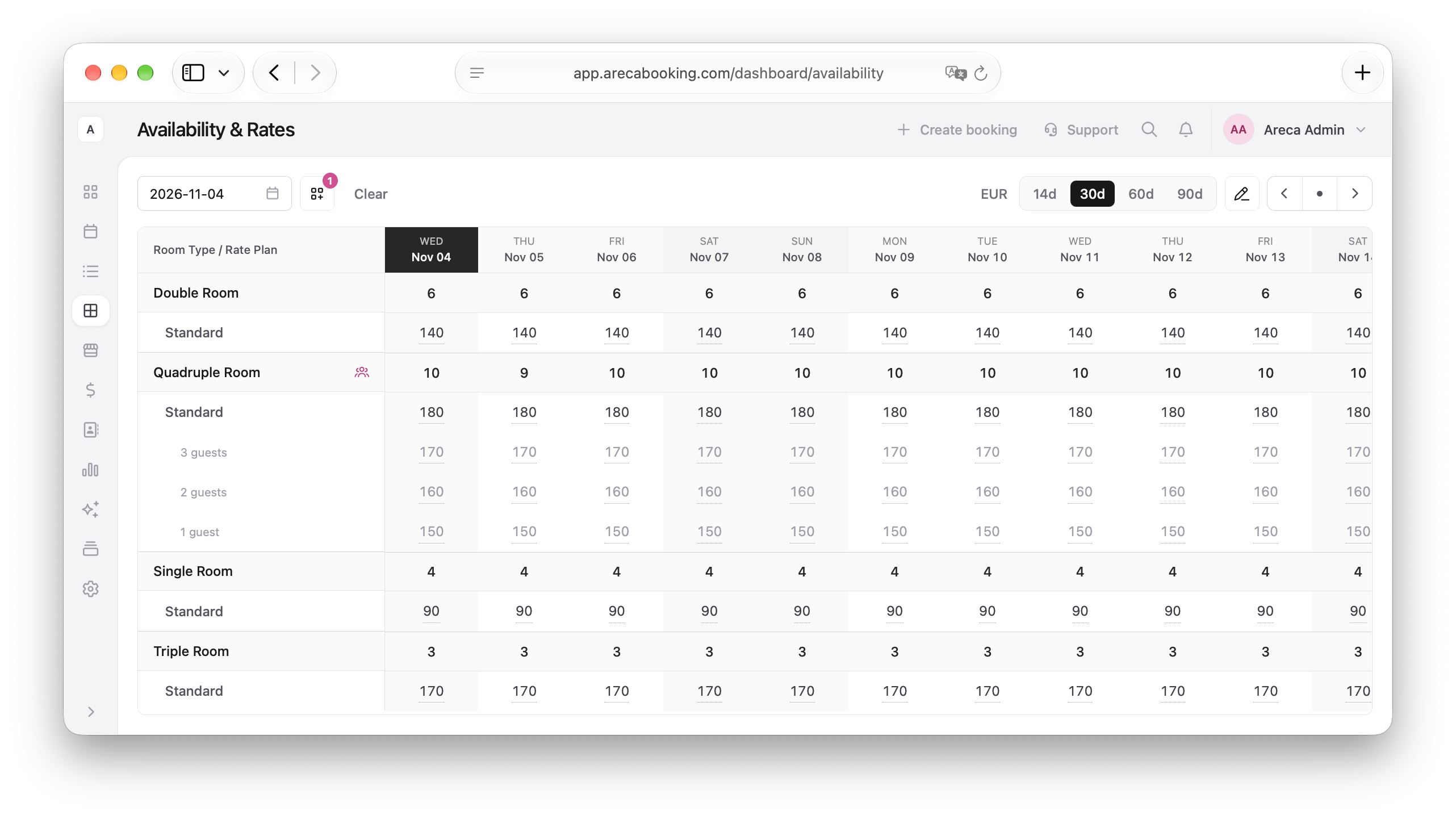
In Availability & Rates, click the Prices per number of guests button next to a room type to show a row for each number of guests, then click a date to change its price. To change many dates at once, use Bulk update and choose the number of guests under Price for.
When you change the Full room price, prices for fewer guests that come from a rule follow the new price. Prices you set by hand for fewer guests stay as they are.
On channels
Channels that price per guest, for example Booking.com with occupancy-based pricing, receive a price for each number of guests. If a channel rate is sold for a fixed number of guests, for example a single-use rate, choose which number of guests' price it gets when you map it in the channel manager. By default it gets the full room's price.
Manual price and restriction overrides
To override prices or restrictions for specific dates, open Availability & Rates, select the desired room type and rate plan, and click on the date you want to change. Enter the new price and click Save.
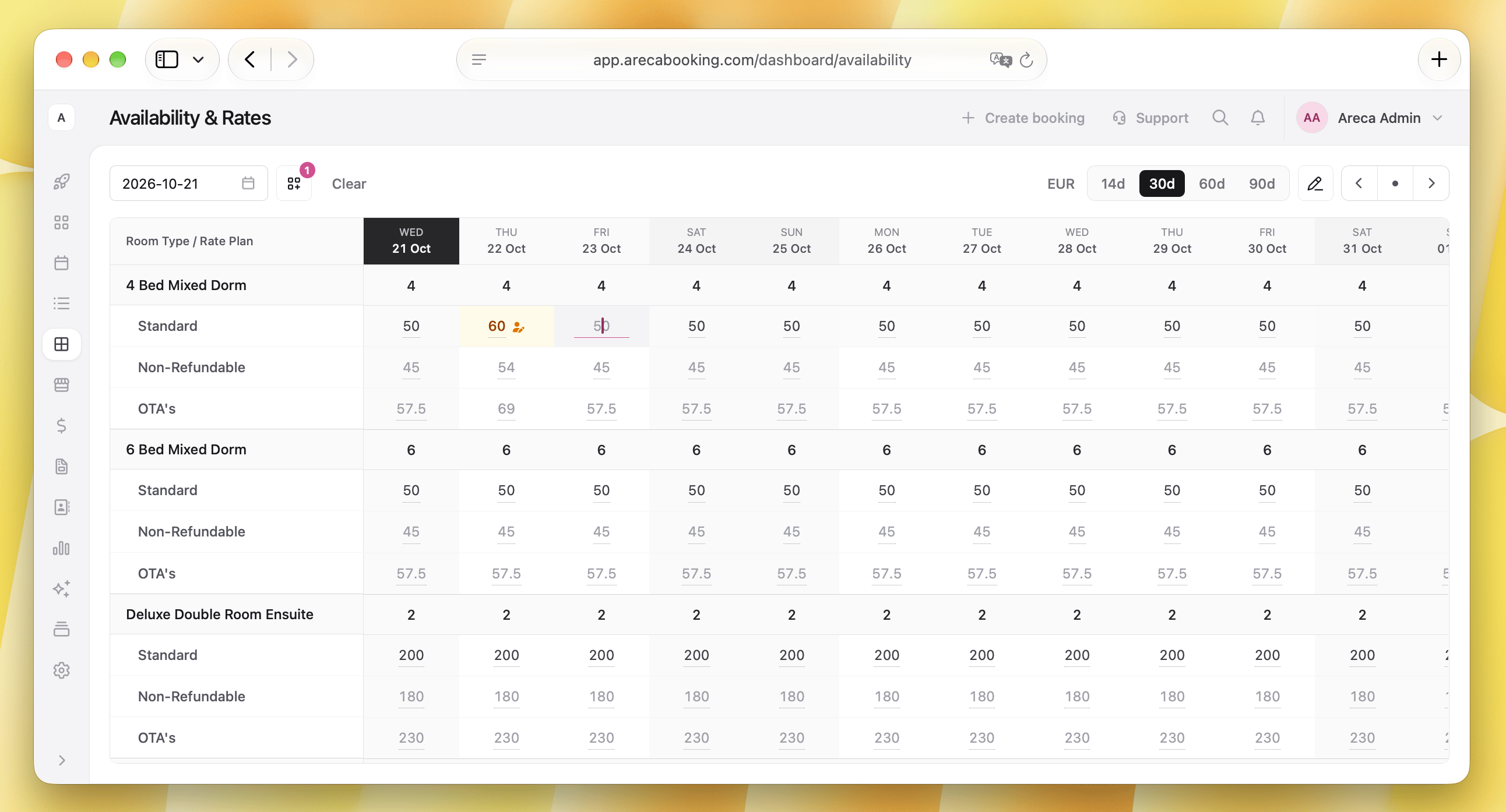
You can view the edit history of manual price changes by clicking on the yellow User-edited button in the Availability & Rates calendar.
Coupons
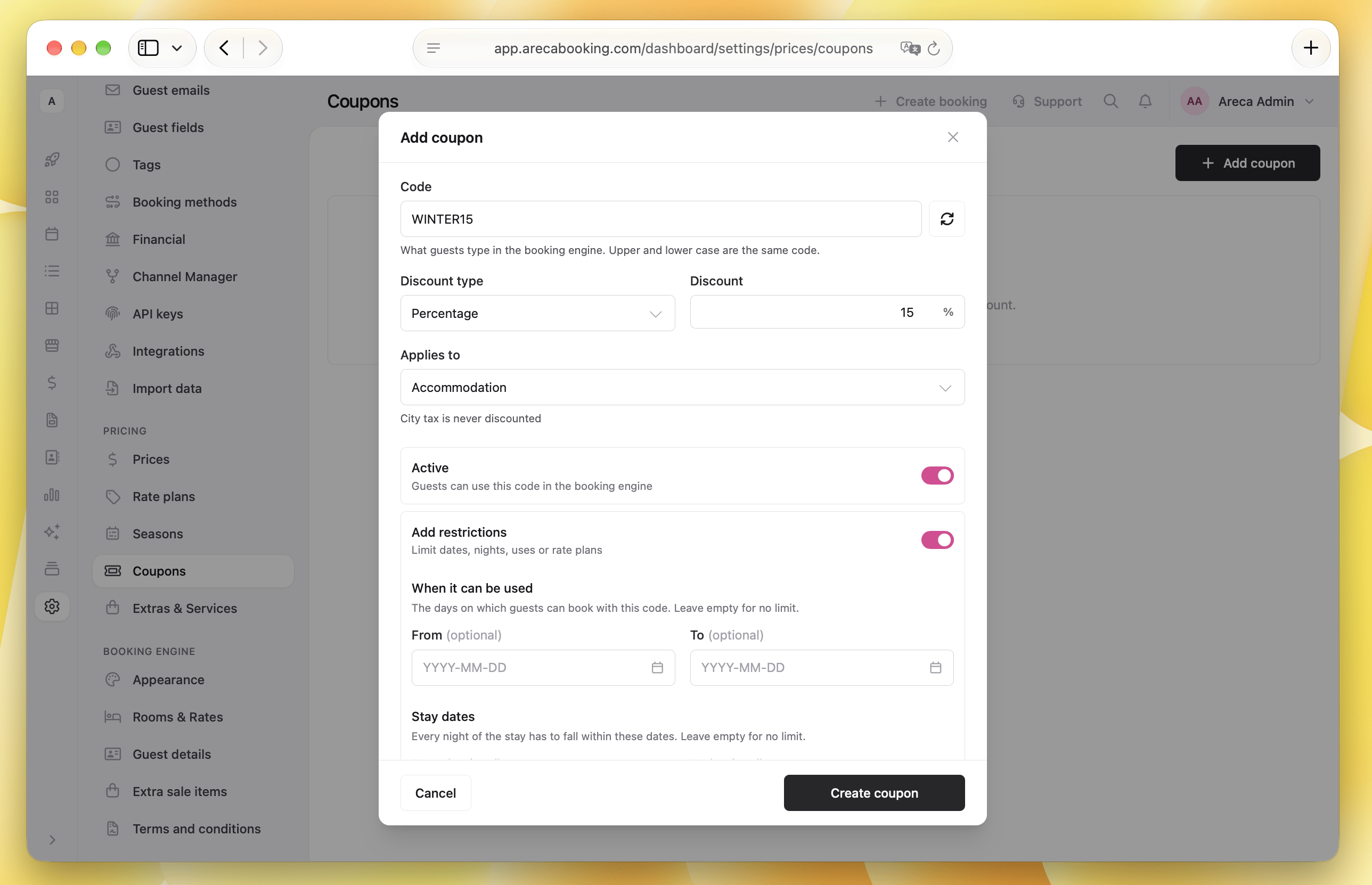
Coupons give guests a discount in the booking engine. Open Coupons and click Add coupon:
- Code: what guests type. Upper and lower case are the same code. You can also generate a code automatically.
- Discount type and Discount: a percentage or a fixed amount.
- Applies to: accommodation, accommodation and extras, or the whole checkout. City tax is never discounted.
- Optional restrictions: when it can be used, stay dates, minimum nights, maximum uses and rate plans.
FAQ
How do I create a weekly rate plan?
Create a derived rate plan with a minimum stay of 7 nights. Go to Rate plans, click Add rate plan and:
- Name it, for example "Weekly".
- Tick Is derived, choose Derived from "Standard" (or any other rate plan), set Adjustment type to Percentage and Adjustment value to the discount, for example -15 for 15% off.
- Under Stay length, set the minimum stay to 7.
- Pick the Room types it is for.
Guests who book 7 nights or more can now choose it. Its prices follow the Standard plan, so you never update them by hand.
Can I have different price adjustments for dorms and private rooms?
Yes, with one rate plan for each. The adjustment applies to every room type of a plan, so create two derived plans, for example "Weekly dorms" at -10 and "Weekly private" at -15, and under Room types pick the shared room types for one and the private ones for the other.
Do I need to create seasons?
No. Dates outside every season use the default season, so one price per room type and rate plan is enough to start. Add seasons when your prices change during the year, for example a higher price in summer.
How do I set a minimum stay?
There are two ways, depending on how long the rule should apply:
-
Always: set the minimum stay under Stay length in the rate plan. It applies to every date.
-
For some dates only, for example New Year's Eve: open Availability & Rates, click Bulk update, pick the room types, rate plans and dates, and under What to update choose Restrictions. Then set:
- Min. Stay: the minimum number of nights for any stay that includes these dates.
- Min. Stay Arrival: the minimum number of nights only for guests who check in on these dates.
Click Apply and then Save changes.
The same place has Max. Stay, Closed on Arrival and Closed on Departure. For a single date, you can also change it in the calendar.
Why does a night keep its old price after I change my prices?
The price of that night was changed by hand in Availability & Rates, and it shows as User-edited. A price set by hand stays until someone changes it, and seasons and rate plan adjustments no longer apply to that night. To go back to the calculated price, use Bulk update, choose Restore default prices for those dates, and save.
Can I derive a rate plan from another derived rate plan?
Yes, you can. When creating a derived rate plan, choose any existing rate plan as the base, including another derived plan. The adjustments will be applied on top of the base plan's prices.